- Jul 9, 2024
Ultimate Step-by-Step Guide to Canva Magic Studio: Elevate Your Creative Game!
- Tori AI
In this guide, we’ll walk through the newly introduced features of Canva Magic Studio as described in the document. Canva has just announced several new tools and capabilities to supercharge your creative work, blending AI technology with the intuitive Canva platform. Below is a comprehensive look at each feature, how it works, and why it matters for your design projects.
1. Magic Design: Prompt to Design
What is it?
Magic Design allows you to create designs from scratch by simply entering a descriptive prompt. It’s an AI-powered tool that uses your input to generate a range of customized templates, including ones for videos and presentations.
How It Works:
On the Canva homepage, find the Magic Design tool. Use the search box not just to search for document types like before, but to enter a detailed description of what you need (e.g., “Instagram story to promote a new pair of sneakers”).
Canva will generate custom templates based on your description, pulling in elements like photos, colors, and text to fit your needs.
Upload your own media if needed (e.g., product photos) and see how Canva integrates it into the design, automatically adjusting text and layout to match your brand.
Why It’s Important:
No more template searching. Canva’s AI creates the template for you based on your input.
Custom text generation means you start with content that is relevant to your project, not placeholder text.
Available for Pro users with 100 prompts per day; free users get 10 lifetime prompts.
2. Magic Design for Videos
What is it?
This feature extends the power of Magic Design to videos. By uploading media (photos or clips) and providing a simple prompt, you can generate an entire video with music, captions, and transitions tailored to your description.
How It Works:
Create a new video document or a social media post on Canva.
-
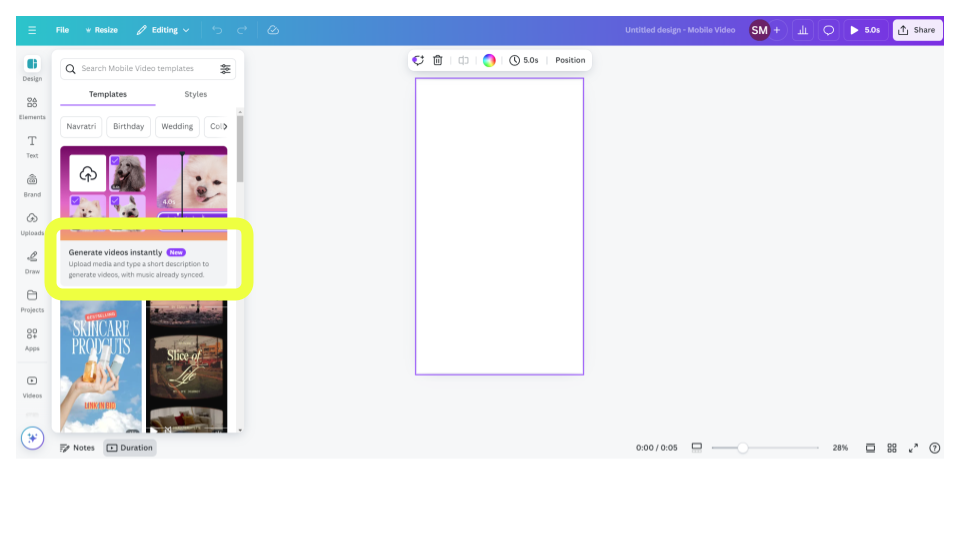
Select "Generate Videos Instantly"
Upload your media (at least 3 files), and provide a short description of the video you want (e.g., “A video to remember my trip to Bulgaria for my birthday”).
Canva will automatically generate a video with synchronized music, transitions, and captions.
Key Features:
Captions are automatically generated based on the content in the video (e.g., recognizing objects in photos).
Includes BeatSync technology to align transitions and music beats seamlessly.
Why It’s Important:
Saves hours of editing by creating a well-structured video with minimal input.
Captions and transitions are smart and relevant to the content of the video.
3. Magic Design for Presentations
What is it?
Need a quick, polished presentation? Magic Design for Presentations lets you generate an entire slide deck by simply typing a prompt, such as a marketing plan or event summary.
How It Works:
Start by opening a presentation document in Canva.
Enter a prompt in the search box (e.g., "Marketing plan for a hummus restaurant").
Canva will generate multiple slide deck options with relevant content and visuals, usually about 7 slides long.
Why It’s Important:
Instead of choosing from generic templates, you get a custom deck with relevant text and images specific to your project.
It’s a huge time-saver for quick business presentations or pitches.
4. Magic Switch: Resize & Translate with Ease
What is it?
In our previous blog post, we already explored Canva's Magic Switch feature, which takes the existing "Resize" functionality to the next level. Magic Switch allows you to not only resize your designs for various platforms, such as transforming an Instagram post into a YouTube thumbnail, but also includes the ability to translate text into different languages or convert your designs into other formats like a Canva document.
By using this tool, you can easily repurpose content across multiple platforms without having to start from scratch. The translation feature also ensures your designs can reach global audiences with just a click, making it a game-changer for anyone managing multilingual or cross-platform campaigns. If you missed it, check out our detailed breakdown in the earlier post.
How It Works:
Resize your design for different platforms (e.g., Instagram post to YouTube thumbnail) by choosing from Canva’s pre-set sizes.
Use the translate option to change the language of text on any page (e.g., translating a design into French).
Convert your design into a Canva document for other purposes (e.g., turning a marketing presentation into a blog post).
Why It’s Important:
No need to manually recreate designs for different platforms.
Quick translations allow you to make designs more globally accessible.
5. Magic Morph: Transform Elements into Something Unique
What is it?
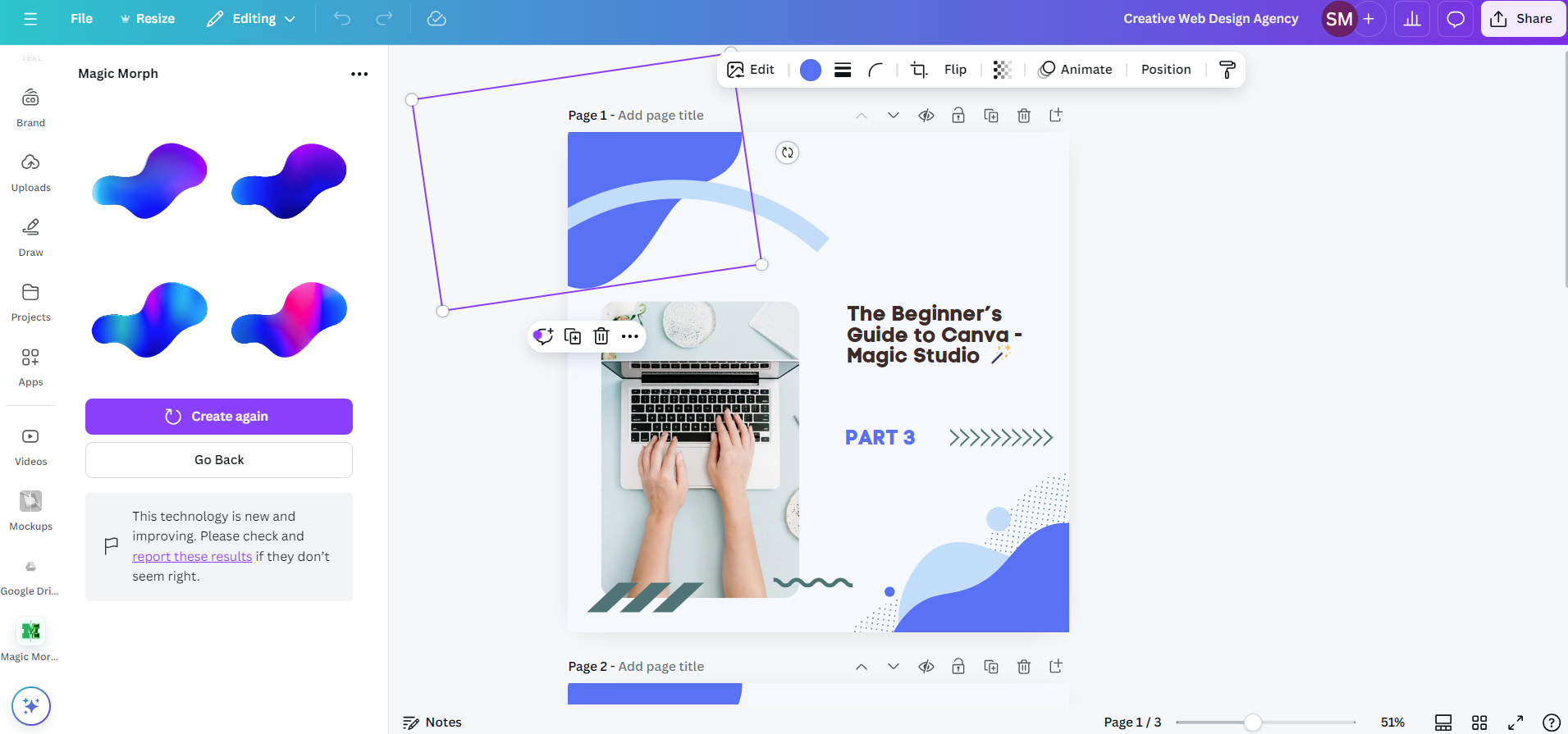
Magic Morph is an AI tool that can take simple elements (like icons or basic shapes) and transform them into something more complex or creative.
How It Works:
-
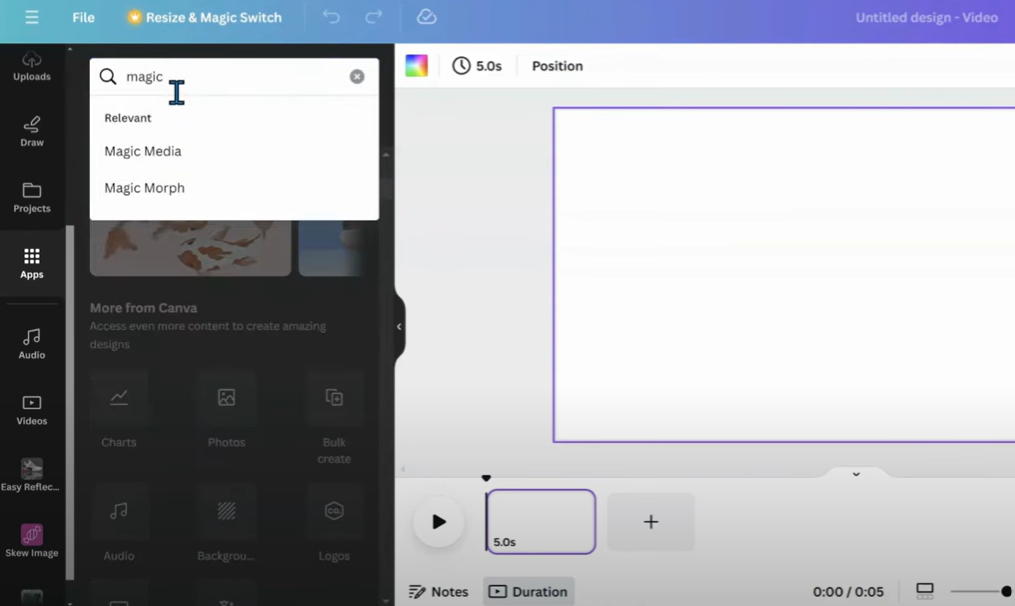
On the left sidebar, go to "Apps" and in the search bar, search for "Magic Morph"
-
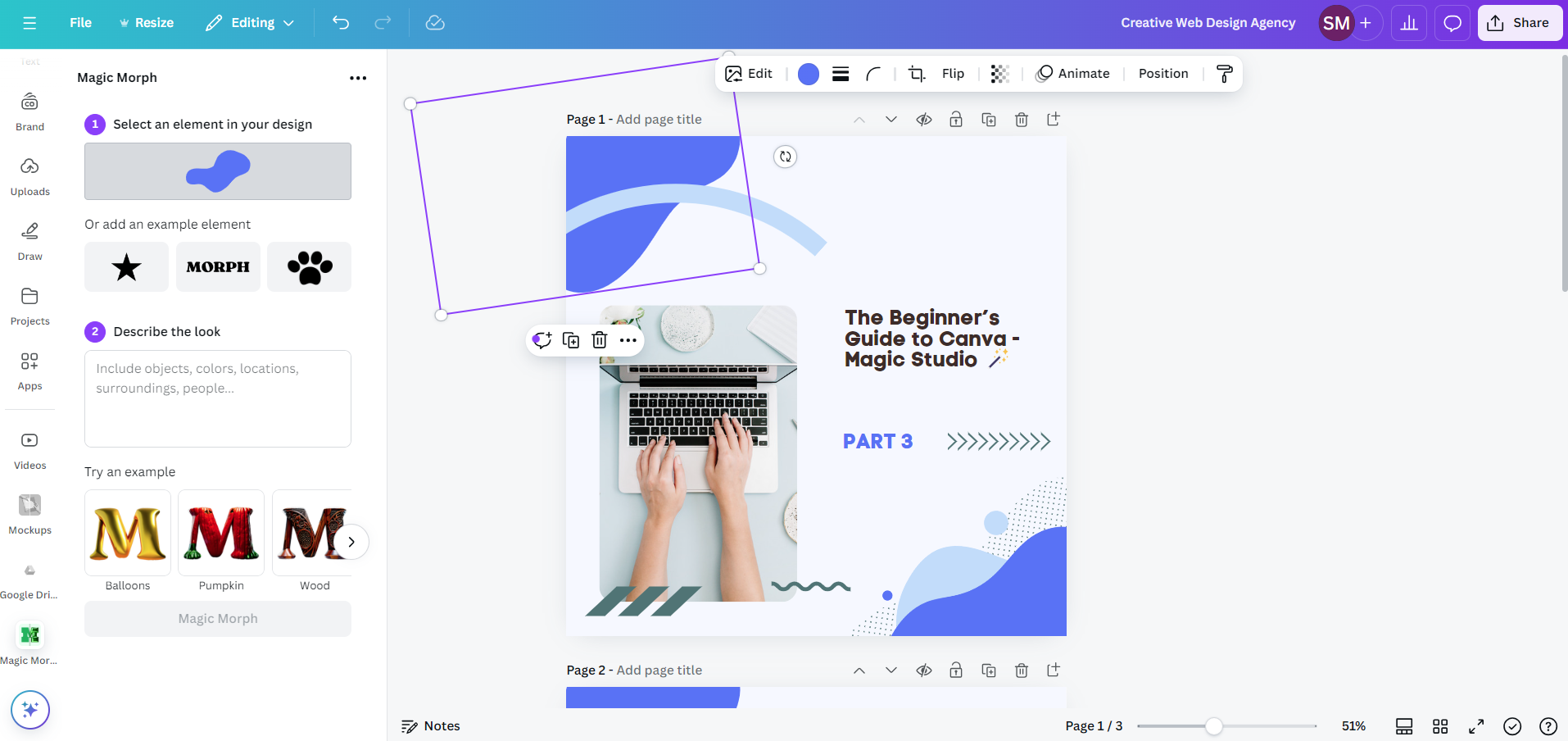
Select any element, text or a shape in your design in your design.
-
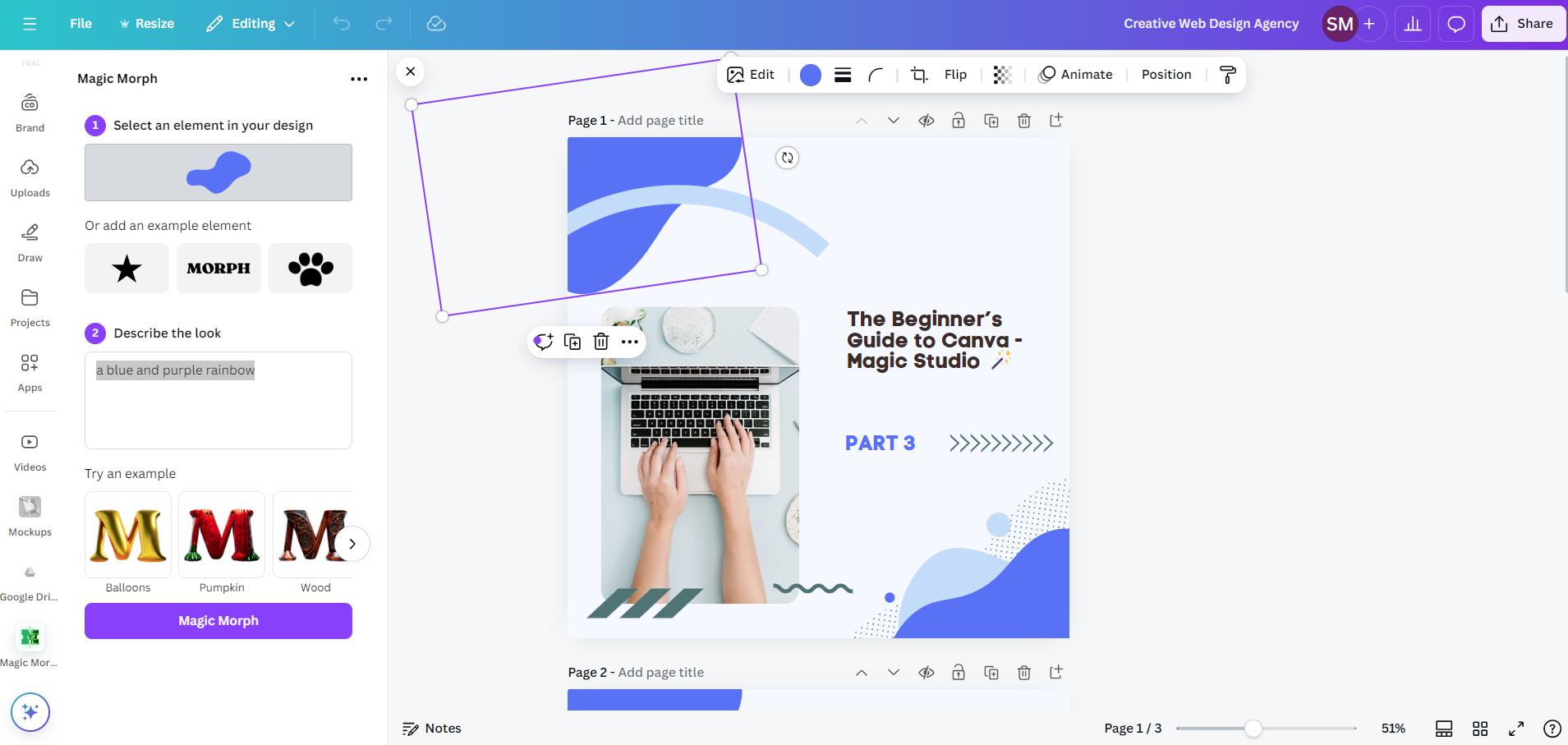
"Describe the look" - Enter a prompt describing how you want it transformed (e.g., “a blue and purple rainbow”), Click on the purple button "Magic Morph" and Canva will morph it into your description.
Why It’s Important:
Allows for creative experimentation, transforming simple design elements into more detailed or stylized objects.
6. Magic Grab & Magic Expand
What is it?
These two tools provide more flexibility when working with photos, allowing you to detach subjects from backgrounds or expand a photo’s size while keeping the image coherent.
Magic Grab:
Select a subject within a photo (e.g., a car) and move it independently from the background. This is different from the usual background remover, as the background remains editable.
Magic Expand:
Extend a photo’s edges by generating new content around the existing image, useful when resizing an image for different aspect ratios.
Why It’s Important:
Provides more creative control when positioning elements in a design.
Magic Expand is great for repurposing photos across multiple formats without losing quality.
7. Magic Write with Brand Voice
What is it?
Magic Write’s new feature allows you to customize Canva’s AI writing tool to your specific brand voice, ensuring consistent, on-brand messaging across all content.
How It Works:
In your Brand Kit, describe your brand’s tone of voice (e.g., friendly, professional, approachable).
Use Magic Write in any design to generate text (e.g., social media posts, blog introductions) that aligns with your specified tone.
Why It’s Important:
Keeps your messaging consistent across all platforms and ensures that AI-generated content matches your brand identity.
8. Magic Media: Bundled AI Image and Video Generation
What is it?
Magic Media combines Canva’s AI-powered text-to-image and text-to-video tools under one roof. By typing a simple prompt, you can generate high-quality visuals or video content.
How It Works:
Select Magic Media from the apps panel.
Type a prompt describing the type of image or video you want to generate (e.g., “a modern café with Scandinavian décor”).
Customize style and aspect ratio options to refine the results.
Why It’s Important:
Quickly generate custom visuals for marketing, social media, or personal projects.
AI handles the creative process, providing you with high-quality images and videos based on your input.
Canva Magic Studio’s new suite of tools brings together the power of AI to revolutionize your design workflow. Whether you need a custom presentation, instant video, or creative design transformations, these features help you work smarter, faster, and more creatively. Dive into Magic Studio today and watch your design process evolve!
Sign up for our newsletter!
Get the latest updates, AI tips, and insights
to help boost your business directly to your inbox.